
- What is Fall Prevention Monitoring?
- How is Fall Prevention enabled?
- What devices are supported?
- Mi Band setup instructions for connection with both Android and Apple phones
- Step 1: Charge and power on your Mi Band
- Step 2: Download the Mi Fitness app
- Step 3: Pair your Mi Band with the Mi Fitness app
- Step 4: Connect Mi Fitness to Apple Health or Google Health Connect
- Step 5: Allow Nomadic Care to access health data
- Step 6: Final checks
- Troubleshooting Tips
- What is being monitored?
- How are alerts generated?
- What happens if no data is received?
- What does the patient need to do?
- Is the data private?
- Is this clinically validated?
- References
- Mi Band setup instructions for connection with both Android and Apple phones
Nomadic Care’s Fall Prevention feature helps care teams monitor early signs of fall risk using smartwatches and smartphones–without patients needing to do anything manually.
This guide explains how it works.
What is Fall Prevention Monitoring? #
Fall Prevention is a background task that monitors walking activity, heart rate, sleep, medication adherence, and more using smartwatches or fitness trackers.
This data helps us flag elevated fall risk early–before a fall occurs.
Clinicians and aged care teams receive alerts through the Nomadic Care portal and via email, so they can take proactive steps to reduce the risk of harm.
How is Fall Prevention enabled? #
Fall Prevention monitoring is only enabled once a care plan coordinator adds it to the patient’s care plan.
Here’s the process:
- Care coordinator adds the “Fall Prevention” task to the care plan
- Patient receives a prompt in the Nomadic Care app asking to accept the task
- Once accepted, background monitoring begins automatically
- No extra steps are required from the patient–just ensure their smartwatch is connected
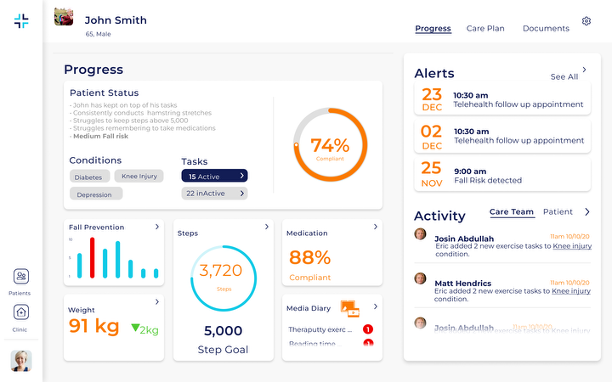
Step 1 – Setup a “Fall Prevention” Track Progress task #
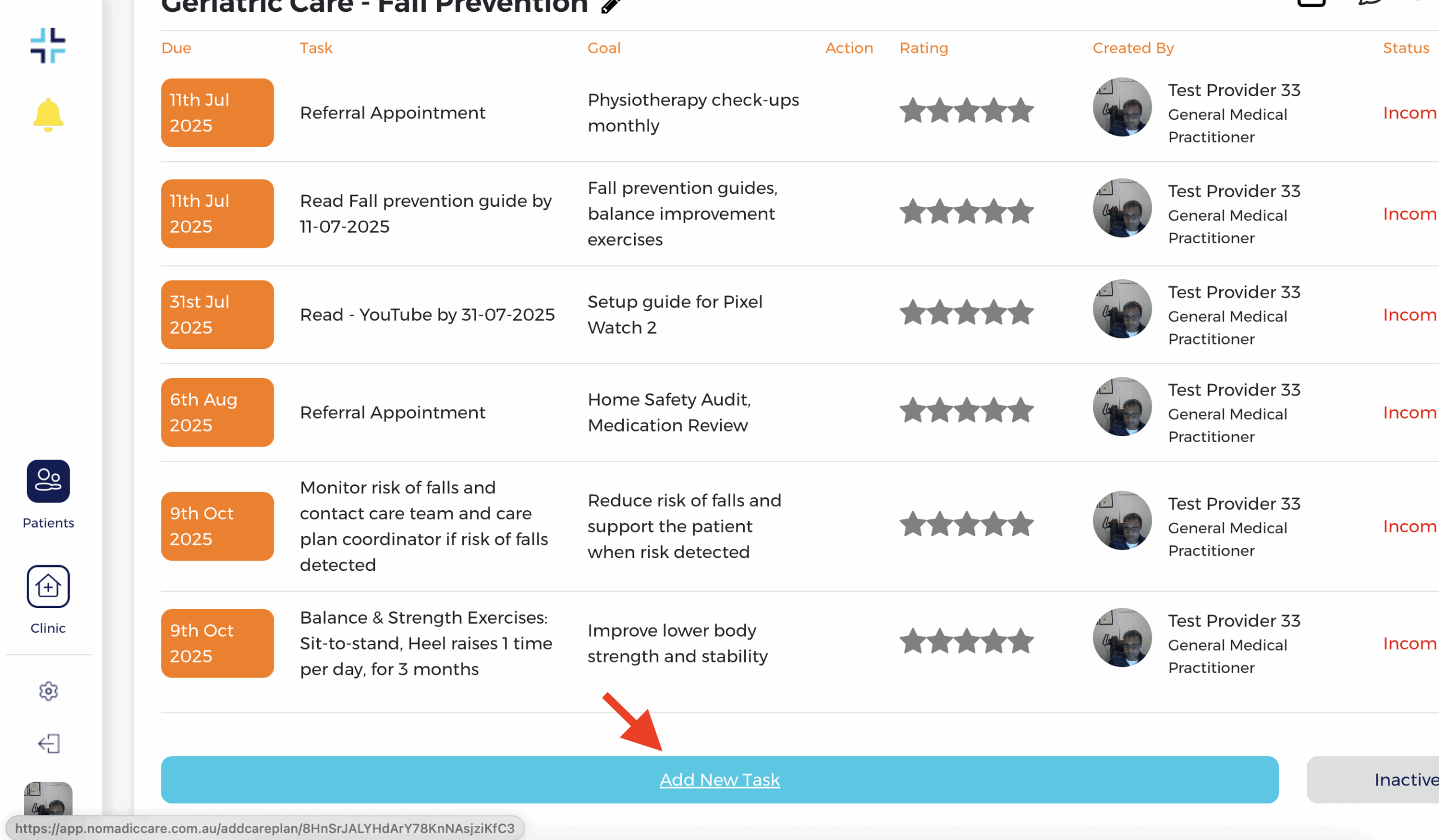
Once you have setup a new patient, and setup a new condition, then you can add a new task inside this condition. Of course, you can add tasks to an existing condition if one was created before.
When you click “Add New Task”
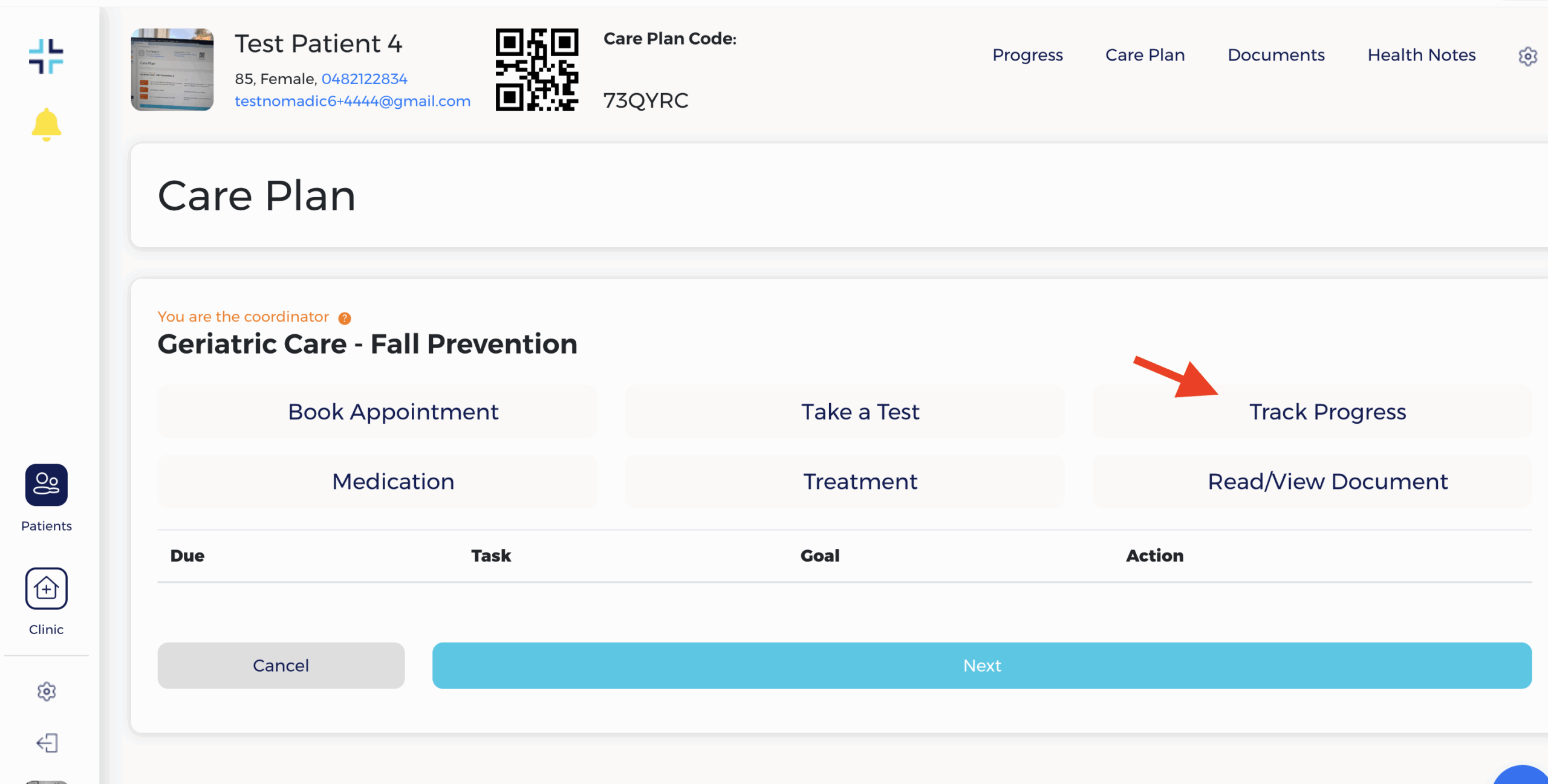
You can then choose Track Progress task type:
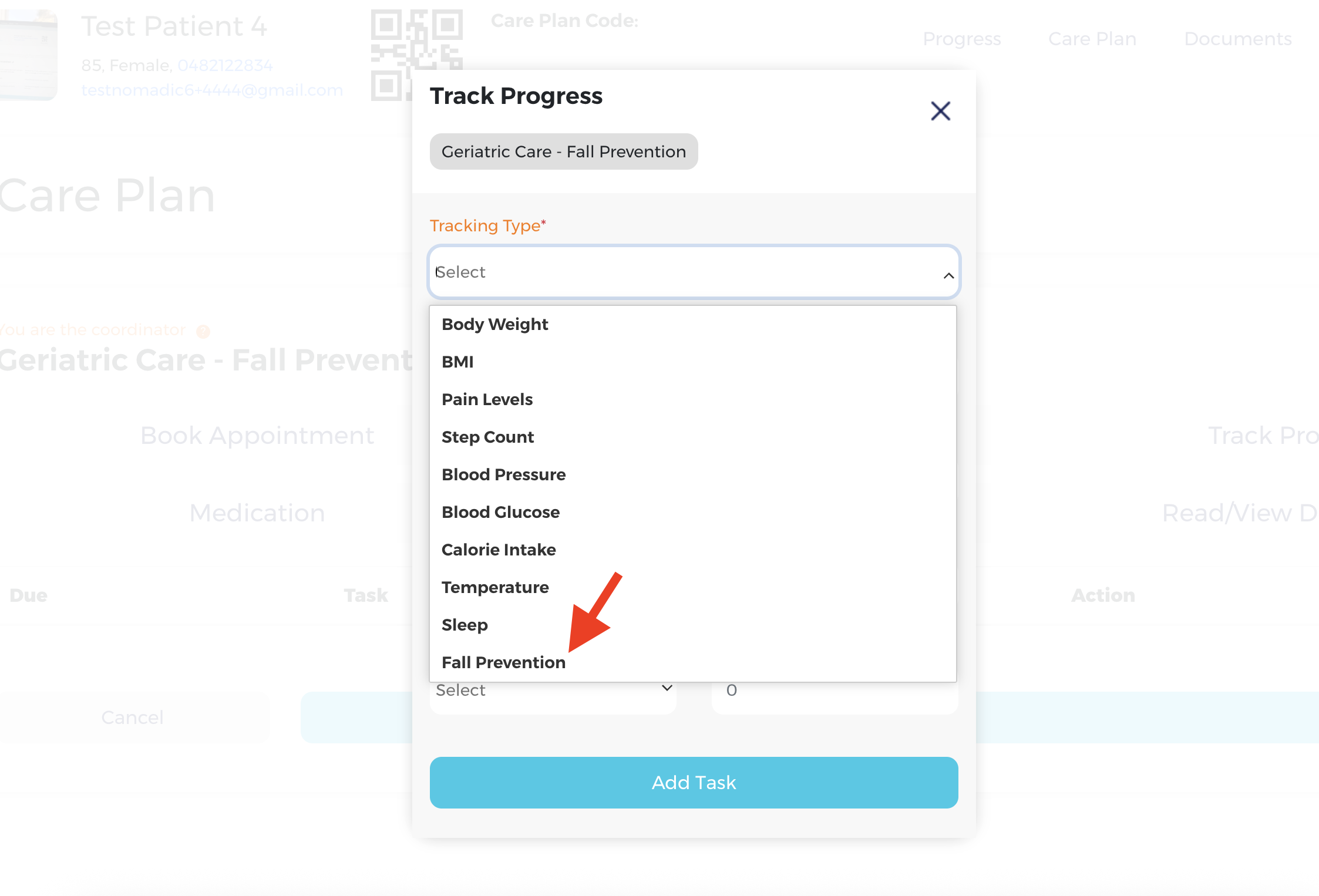
And then Select Fall Prevention health tracking type:
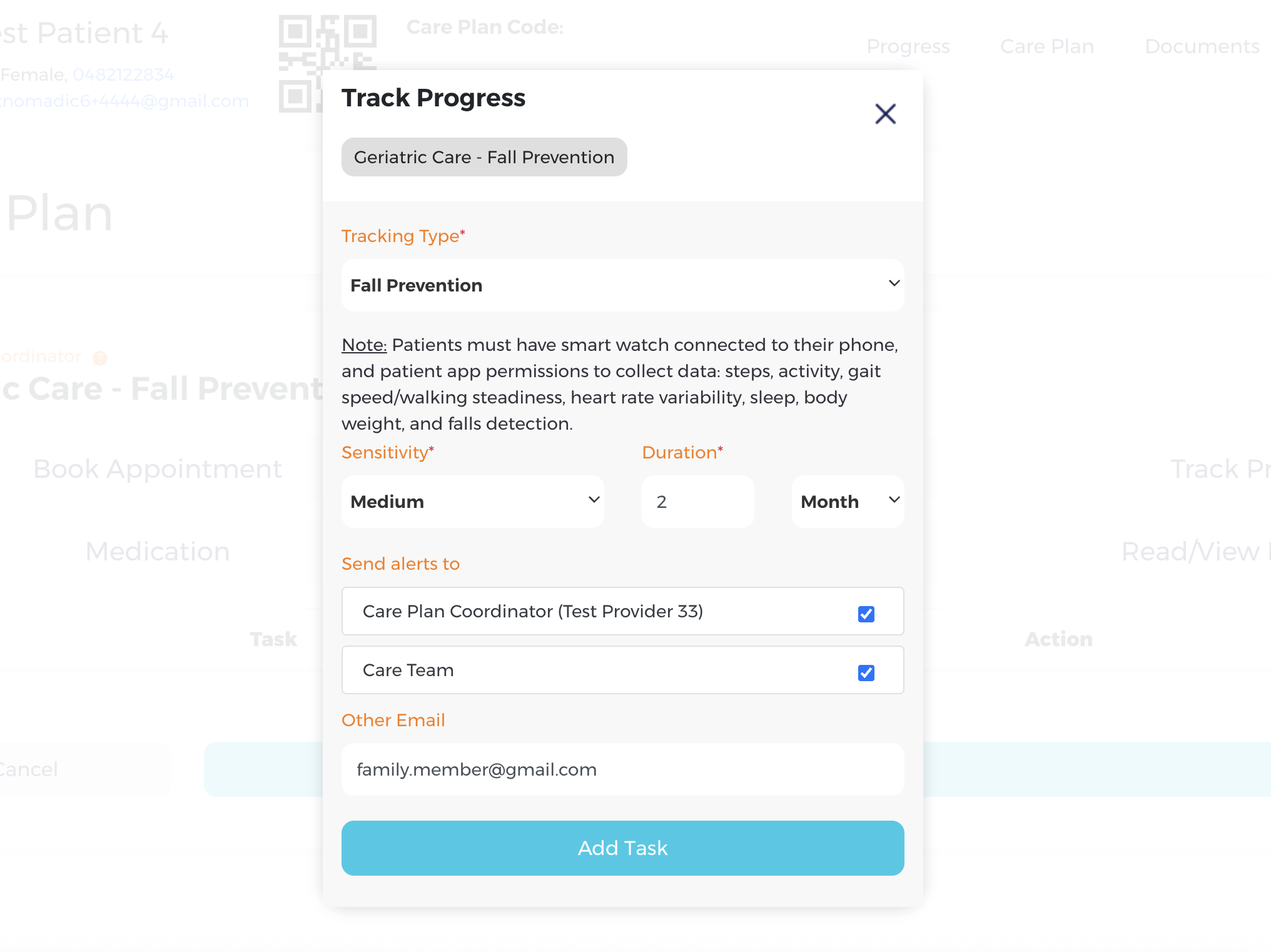
Then you can configure the Track Progress according to your requirements:
- Sensitivity: This sets how sensitive the monitoring will be:
- A low setting will only trigger an alert if significant changes in measurements are observed
- A high sensitivity will trigger alerts with minimal changes in health measurement
- A medium sensitivity setting strikes a balance between low and high sensitivity
Step 2 – Patient accepts the task and connects their wearable device #
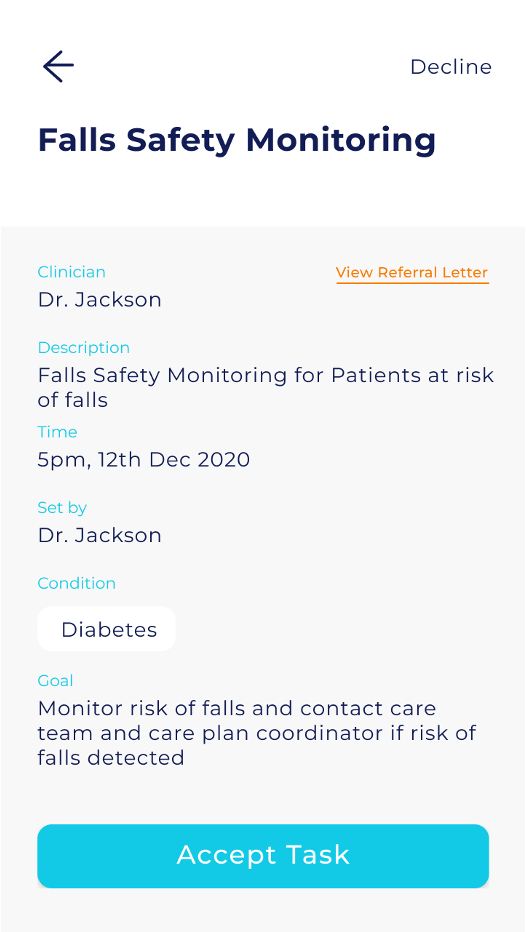
The patient will be requested to accept the new task the next time they login t the Nomadic Care patient app:
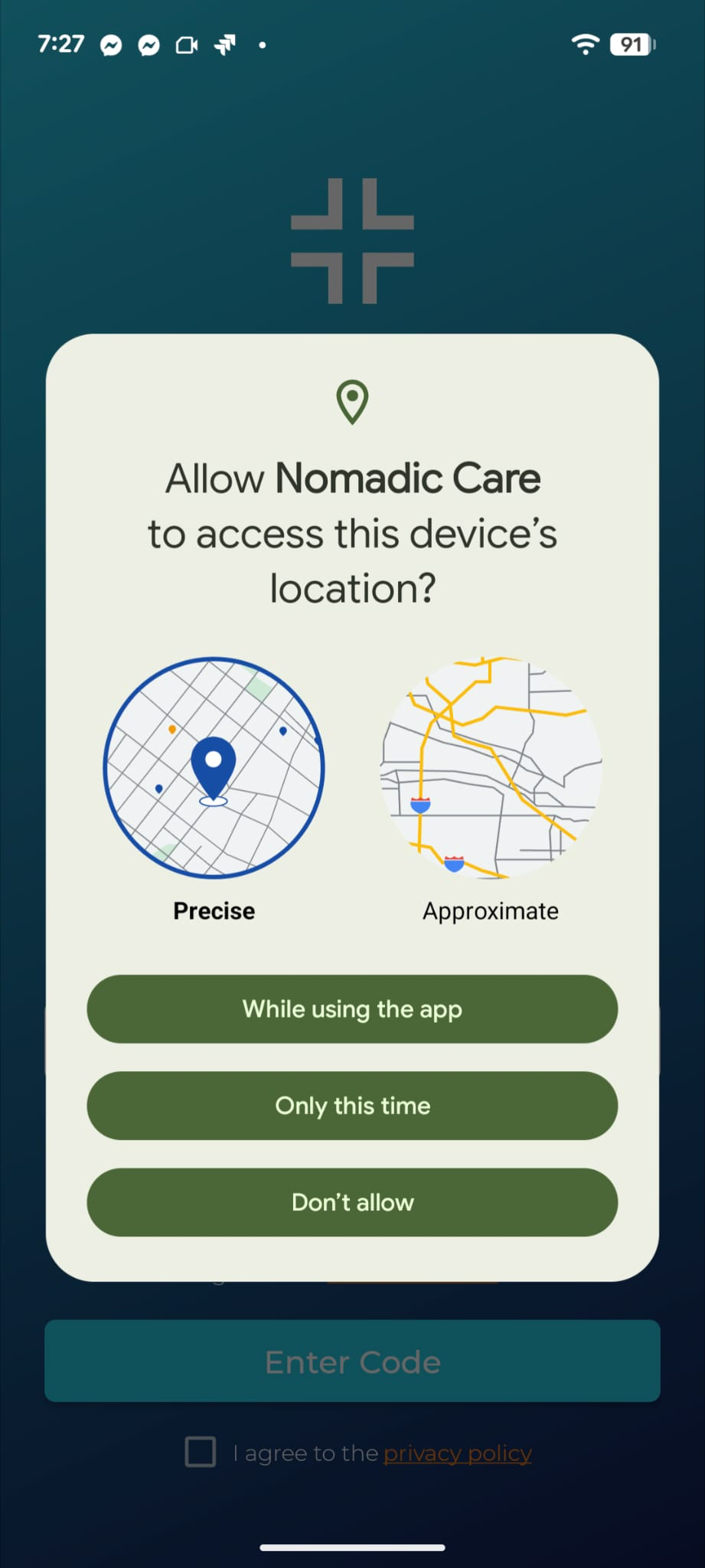
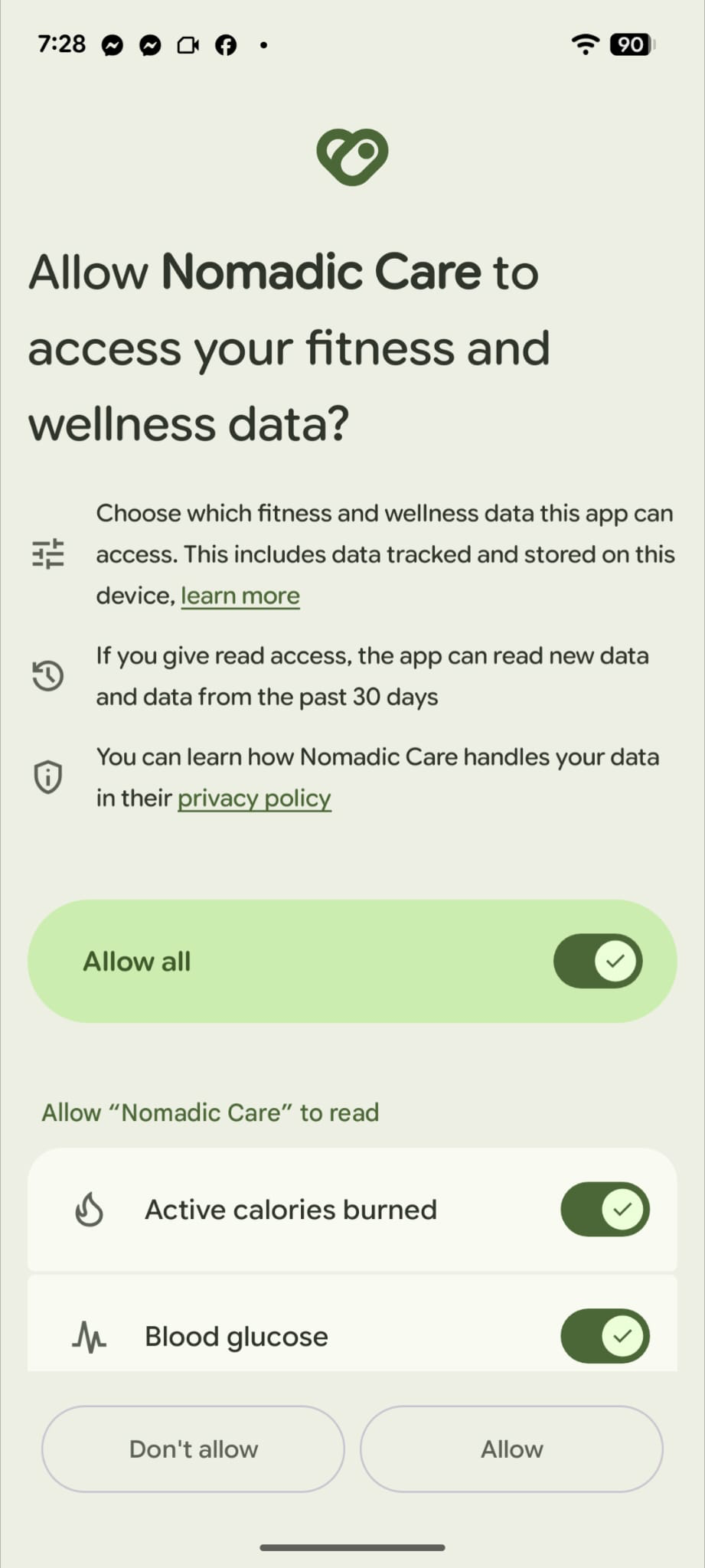
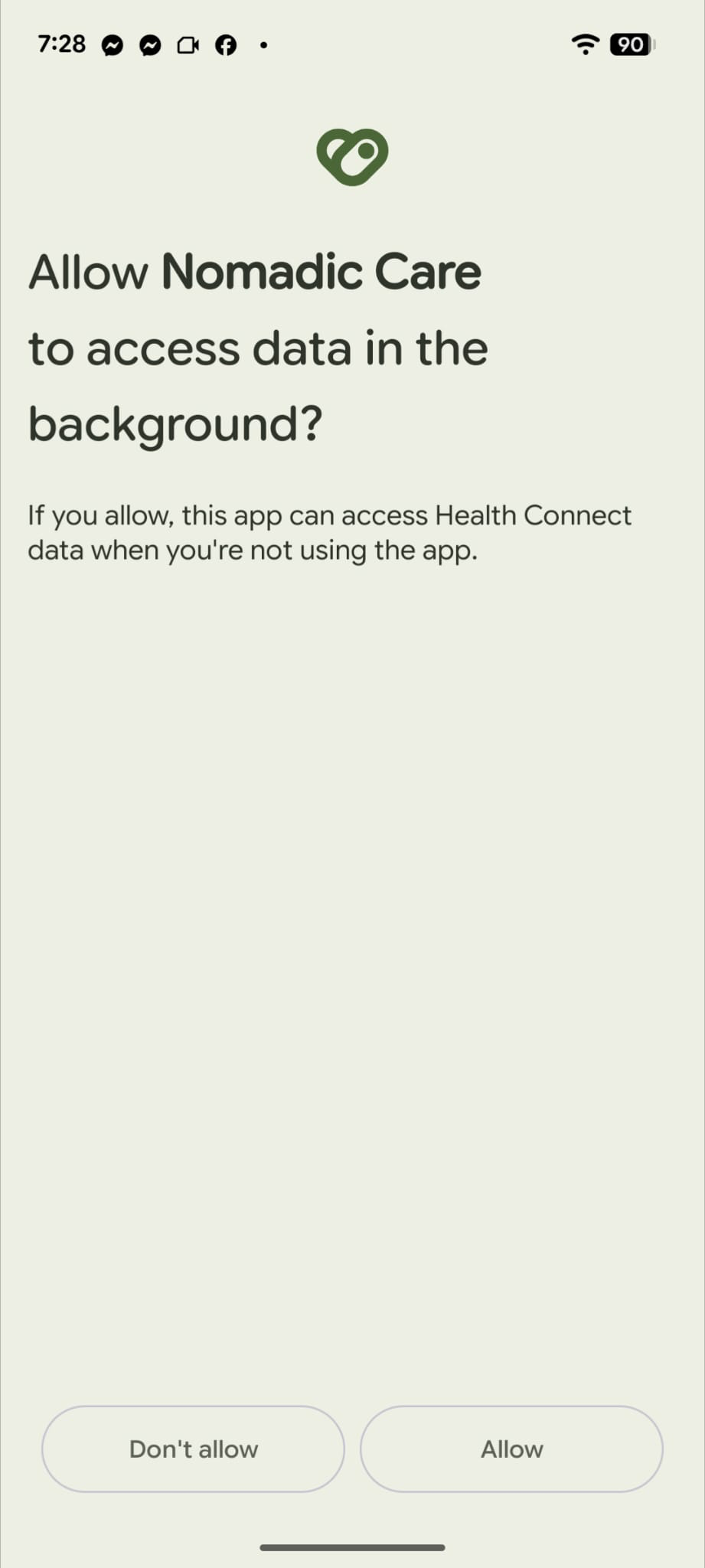
The app will request for permissions to access health data and locations, and the ensure the monitoring service runs at all times. Accept all permissions requests to ensure the track progress tasks, such as fall prevention monitoring, works correctly.
Note: The following screenshots are for an Android device. A similar permissions request will be displayed for iOS phones:
What devices are supported? #
Nomadic Care works with:
- Apple Watch (via Apple HealthKit).
- Android wearables like Samsung Watch, Fitbit, or Mi Band (via Google Health Connect, Mi Fitness and other required applications)
The Google Pixel Watch 2, paired with a mainstream Android device (e.g. Pixel phone, Samsung Galaxy, etc.), will work seamlessly once the wearable is paired with the phone. Google Health Connect must be installed prior to the Nomadic Care Patient app being installed.
For Apple Watch, the connection and pairing is also very simple. Patients simply have to startup the watch, pair it with the iPhone, and then install the iOS version of the Nomadic Care patient app.
Mi Band setup instructions for connection with both Android and Apple phones #
Nomadic Care has been extensively tested with Mi Band devices (Mi Band 6 or later), which offer long battery life, reliable tracking, and excellent value.
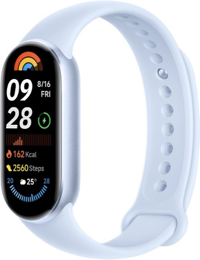
They work seamlessly with both iPhone and Android phones using the Mi Fitness app. Once connected to Apple HealthKit or Google Health Connect, they feed data directly into the Nomadic Care system.
Follow the steps below to get set up.
Step 1: Charge and power on your Mi Band #
- Use the included magnetic charger to fully charge the Mi Band.
- Once charged, press the band’s button or tap the screen to wake it up.
Step 2: Download the Mi Fitness app #
On iPhone (iOS):
- Open the App Store
- Search for Mi Fitness (Xiaomi Wear Lite)
- Install the app
On Android:
- Open the Google Play Store
- Search for Mi Fitness
- Install the app
Step 3: Pair your Mi Band with the Mi Fitness app #
- Open the Mi Fitness app and create or sign in to a Xiaomi account.
- Allow the app to access Bluetooth and location when prompted.
- Tap “Add device” or “+” and select “Band”.
- Choose Mi Band 6 / 7 / 9 (whichever model you’re using).
- The app will search for the band–confirm the pairing on both phone and band.
💡 Tip: Keep the band close to your phone during pairing.
Step 4: Connect Mi Fitness to Apple Health or Google Health Connect #
This step ensures your health data syncs into Nomadic Care.
If using iPhone (Apple Health): #
- Open the Mi Fitness app
- Tap Profile > Settings > Health Data Sharing
- Select Apple Health
- Turn on sharing for all relevant categories (steps, heart rate, sleep, etc.)
If using Android (Google Health Connect): #
- Open Mi Fitness app
- Tap Profile > Settings > Third Party Access
- Select Health Connect
- Follow prompts to install or activate Health Connect if not already set up
- Enable sharing of steps, heart rate, sleep, and activity data
Step 5: Allow Nomadic Care to access health data #
iPhone users:
- Open the Settings app
- Go to Health > Data Access & Devices
- Tap Nomadic Care
- Enable access to all relevant data (Steps, Heart Rate, Sleep, etc.)
Android users:
- Open Settings > Apps > Nomadic Care > Permissions
- Ensure Physical Activity and Health Data are enabled
- Open the Nomadic Care app and accept any permission prompts
Step 6: Final checks #
✅ Smartwatch connected?
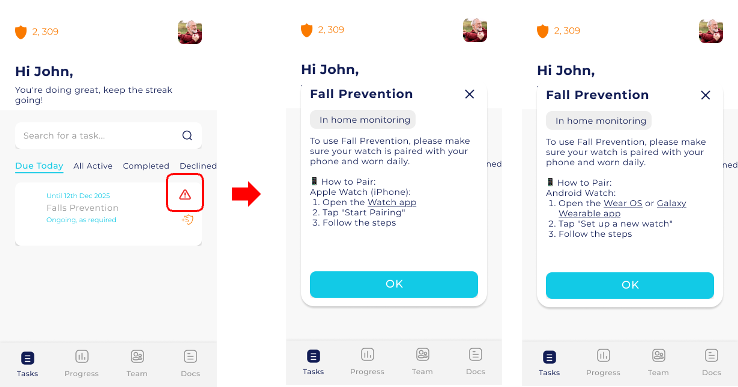
Nomadic Care will show a green icon under the Fall Prevention task.
🔋 Battery low?
Nomadic Care will notify you when Mi Band battery drops below 5%.
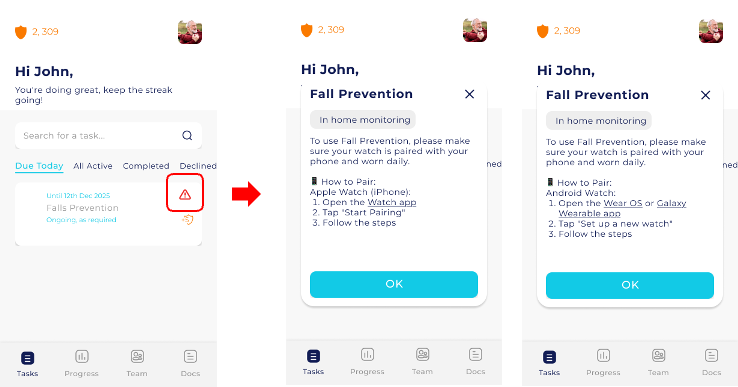
If not connected, a red icon will appear with a message explaining how to reconnect.
Troubleshooting Tips #
Still stuck? Contact your care team or email support@nomadiccare.com.au
Problem: Band not pairing
Fix: Restart Bluetooth and Mi Fitness app. Ensure the band is charged and close to your phone.
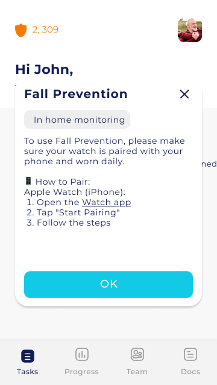
Apple Watch connection instructions
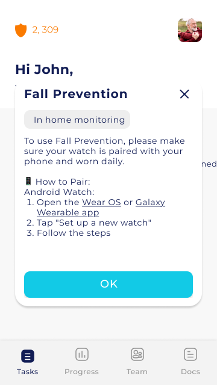
Android watch connection instructions
Problem: Data not syncing to Nomadic Care
Fix: Check that Mi Fitness is connected to Apple Health or Google Health Connect, and that Nomadic Care has permission to access that data.
What is being monitored? #
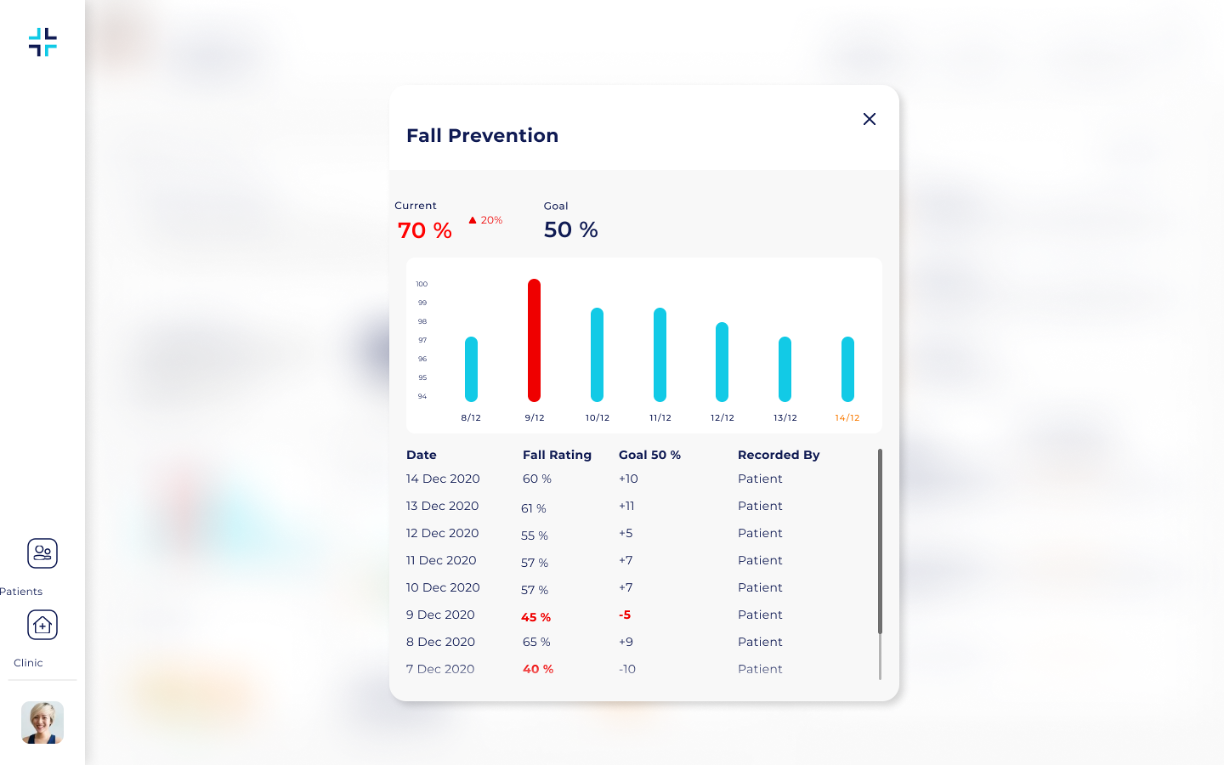
Nomadic Care collects the following indicators in real time:
- Step count
- Walking distance
- Activity sessions
- Heart rate
- Sleep quality
- Blood oxygen (SpO₂)
- Weight (rapid weight loss may indicate frailty)
- Medication adherence
- Night-time movement
- Relevant past medical history (e.g. past fall events, mental health issues, etc.) as captured within the patient’s health notes within the care plan condition
These are checked every 5, 10, or 15 minutes depending on the selected sensitivity setting.
How are alerts generated? #
Nomadic Care reviews a 7-day pattern of the patient’s health and movement data.
If one or more indicators fall below healthy thresholds–for example, fewer steps, missed meds, or irregular heart rate–a fall risk alert is triggered.
This alert goes to:
- The care plan coordinator
- Optional members of the care team
- The patient (via in-app notification)
The patient will also receive suggestions for how to stay safe and reduce their risk.
What happens if no data is received? #
If no data is received–for example, if the smartwatch disconnects or runs out of battery–Nomadic Care will:
- Show a red alert icon in the patient app
- Send an email and app notification explaining how to reconnect the device
- Notify the care team that the data is missing so they can follow up
What does the patient need to do? #
After accepting the task, nothing further is required.
Patients just need to:
- Keep their smartwatch on and charged
- Ensure Bluetooth and health permissions are enabled
- Make sure the app has access to Apple Health or Google Health Connect (this is prompted by the app after first log in)
Nomadic Care handles the rest automatically.
Is the data private? #
Yes. The Fall Prevention feature follows all required Australian privacy standards.
- Patients must explicitly accept monitoring before it begins
- No data is shared without patient consent
- All health data is encrypted and securely stored on the Nomadic Care servers
Is this clinically validated? #
Nomadic Care’s approach follows international best practices, including:
- World Health Organization (WHO) fall-risk frameworks
- Australian Occupational Therapy guidelines
- Research-supported indicators such as low activity, medication non-adherence, sleep disruption, and changes in walking steadiness
You can read more in the references section below, or contact us for more details.
References #
- World Falls Task Force (Montero‑Odasso, M., van der Velde, N., Martin, F. C., et al.), 2022. World guidelines for falls prevention and management for older adults: a global initiative. Age and Ageing, 51(9), afac205.
This comprehensive guideline offers evidence-based, person-centered global recommendations for assessing fall risk, conducting multifactorial assessments, and implementing personalised intervention strategies. - World Health Organization, 2007. WHO global report on falls prevention in older age. Geneva: World Health Organization.
This foundational report provides a global framework for fall prevention, covering the magnitude of the issue, risk factors, intervention opportunities, and implementation challenges. - Australian Commission on Safety and Quality in Health Care (ACSQHC), 2025. Preventing Falls and Harm from Falls in Older People: Best Practice Guidelines for Community Care in Australia. Sydney: ACSQHC.
- Chen, M., Wang, H., Yu, L., Yeung, E.H.K., Luo, J., Tsui, K.-L. & Zhao, Y., 2022. A systematic review of wearable sensor‑based technologies for fall risk assessment in older adults. Sensors, 22(18), p.6752.
- Wang, X., Cao, J., Zhao, Q., Chen, M., Luo, J., Wang, H., Yu, L., Tsui, K.-L. & Zhao, Y., 2024. Identifying sensor‑based parameters associated with fall risk in community‑dwelling older adults: an investigation and interpretation of discriminatory parameters. BMC Geriatrics, 24, Article 125.
- Törnblom, M., Rönkkö, K., Ådahl, K., Karlsson, S., Olsson Möller, U. & Nivestam, A., 2025. Older persons’ experiences with wearable sensor‑based fall risk screening in free‑living conditions. BMC Geriatrics, 25, Article 426.
- Yu, X., Cai, Y., Yang, R., Ma, F. and Kim, W., 2025. Revisiting sensor-based intelligent fall risk assessment for older people: A systematic review. Engineering Applications of Artificial Intelligence, 144, p.110176.
- Bezold, J., Krell‑Roesch, J., Eckert, T., Jekauc, D. & Woll, A., 2021. Sensor‑based fall risk assessment in older adults with or without cognitive impairment: a systematic review. European Review of Aging and Physical Activity, 18, Article 15.
- Montesinos, L., Castaldo, R. & Pecchia, L., 2021. Performance and characteristics of wearable sensor systems discriminating and classifying older adults according to fall risk: a systematic review and meta‑analysis. Sensors, 21(17), p.5863.


